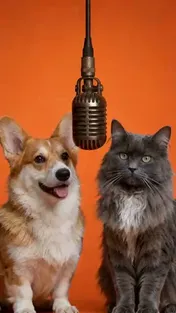

15 seconds · 5 performers · 2 scenes
Tiny Desk AI Concert Video
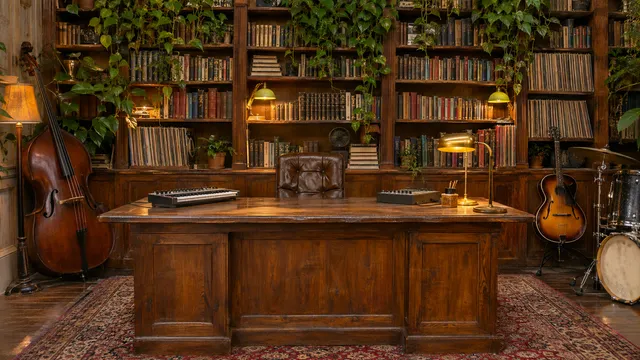
Cast a five-piece band around a desk. Choose the Tiny Desk room or the Classroom scene, then use the sample cast or replace individual performers.
Video examples
Each example pairs cast photos and a scene reference with its AI-generated video. Replace the cast in the form above to make your own; results vary with the photos and settings.
Tiny Desk concert
Input · Cast and setting
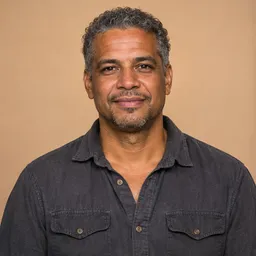 Lead singer
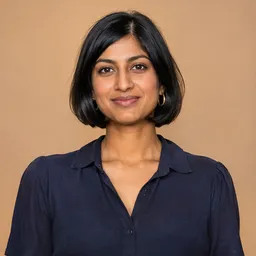 Keyboard player
 Backing singer A
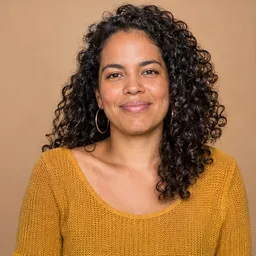 Backing singer B
 Saxophone player
Classroom concert
Input · Cast and setting
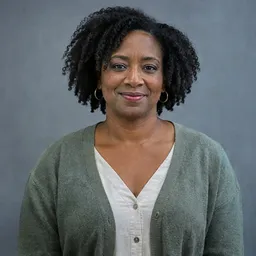 Lead singer
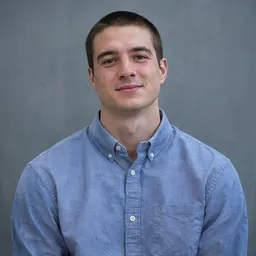 Keyboard player
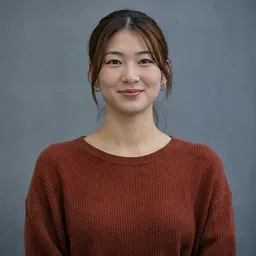 Backing singer A
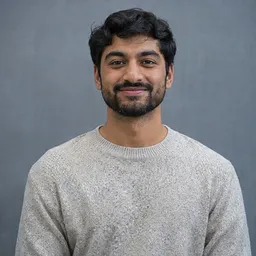 Backing singer B
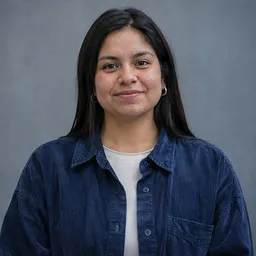 Saxophone player
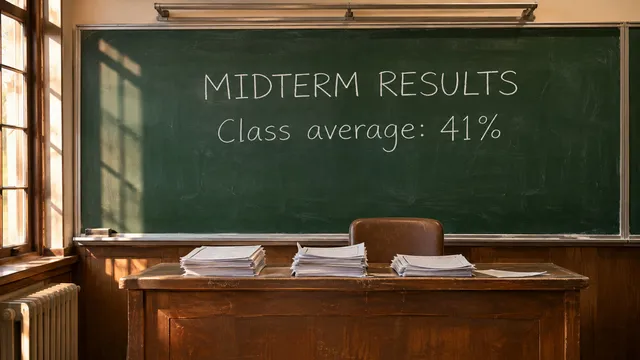
Background and origins
Where does the Tiny Desk AI format come from?
The desk-concert setting draws on NPR’s Tiny Desk series. The “Outstanding” meme references Charlie Wilson’s performance; NPR’s concert page, published June 5, 2023, lists “Outstanding.” AI parodies use unexpected casts in a crowded, intimate band setting.
Here, five cast references and one setting guide a new fictional performance. Choose the bookshelf room or Classroom, with a lead singer, keyboard player, two backing singers and a saxophonist. The model generates new music; the template does not supply the “Outstanding” recording. Animaiva is independent of NPR and the performers.
Original concert: Charlie Wilson — NPR Tiny Desk ConcertA small room with a full band
The lead opens the performance, then the keyboard and backing singers join in before a sax break. Tiny Desk puts the band in a warm room with bookshelves. Classroom moves the same format to a lecture desk and turns a midterm result into a running joke.
Step by step
How to make a Tiny Desk video
- Choose a setting
Pick Tiny Desk for the warm bookshelf room or Classroom for the lecture desk. Each scene starts with its own five-person sample band.
- Cast the five roles
Keep all five sample portraits, or replace any of the lead, keys, backing A, backing B and sax roles. Use a separate clear photo for each replacement; untouched roles keep their samples.
- Set the video format
Choose a model, an available resolution, and 9:16 vertical or 16:9 wide framing. The template sets the duration, shots and music directions automatically. Review the displayed credit cost.
- Confirm and generate
Sign in and confirm permission to use the photos, then submit. Follow progress in the task details; you can reopen it from your task history.
- Watch and download
Review faces, instruments, cuts and sound before downloading. AI can change details between shots. Check an existing task if it stalls, and identify the finished performance as AI-generated when sharing.
FAQ
Tiny Desk FAQ
Answers about your photos, the soundtrack, credits and getting your video.
If I replace one photo, is the concert still a full band?
Yes. The band keeps its lead, keyboard player, two backing singers and saxophonist. One uploaded portrait replaces only its chosen role; the other four retain their sample photos. You can leave every sample in place or personalize any combination of the five roles.
What changes when I switch to Classroom?
Tiny Desk places the band among bookshelves and warm lights. Classroom comes with a different sample cast and a lecture-desk setting, with a performance built around midterm results. Choose the scene first, then add your portraits: switching scenes resets the cast slots to that scene’s samples.
Do I need to write a prompt or supply the music?
The scene preset supplies the shot sequence and music directions. Select your cast and video settings, then generate; there is no prompt, song-upload or custom-lyrics field on this page. The model creates the performance and soundtrack together, so individual notes, cuts and vocal timing are not precisely editable here.
Can I change the concert length or make a wide version?
Both scenes use a fixed 15-second sequence. You can choose 9:16 vertical or 16:9 wide and select a resolution supported by your chosen model. Changing those settings keeps the five-role arrangement; check the updated cost before submitting.
Is this NPR footage with the song “Outstanding”?
You get a newly generated fictional concert, with a new soundtrack, rather than an edit of NPR’s recording. The “Outstanding” recording is not included. Animaiva has no affiliation with NPR or the original performers; identify your clip as AI-generated when you share it.
How are credits charged, and when will the video be ready?
The model, resolution and template duration determine the cost. Check the quote in the generator before you submit. Credits are reserved on submission; completion time depends on the provider and queue, so follow the task status rather than a fixed countdown.
Where is my result if I leave the page or lose the connection?
Reopen the task from your task history. Its details show progress and, when ready, the video player and download link. A lost connection does not prove generation failed. Check the existing task and credit record before starting another; confirmed failures that produce no video release reserved credits, while a generated video still uses credits if delivery is blocked by moderation.
Will the faces and movements match the examples exactly?
The examples show a possible result, not a guaranteed take. AI can alter faces, hands, timing and small details. Give each role a clear, unobstructed reference photo and review the entire clip before sharing. Making a different take creates a new generation with its own displayed cost.
Are my reference photos and videos publicly visible?
Your uploads and personal results are kept in private storage and require account ownership checks to access. The references are processed by generation and safety-check providers to fulfill the request. Removing a photo from the form does not erase a previous upload. Request deletion through account support and see the Privacy Policy for retention details.